AI & MCP
How to connect Claude Code to Gravitask: a complete MCP setup guide
Five minutes, one CLI command and one workspace API key are enough to give Claude Code structured, authenticated read-and-write access to every project, task, comment and time entry in your Gravitask workspace. This guide walks through the whole flow with screenshots, troubleshooting and a handful of prompts worth trying on day one.
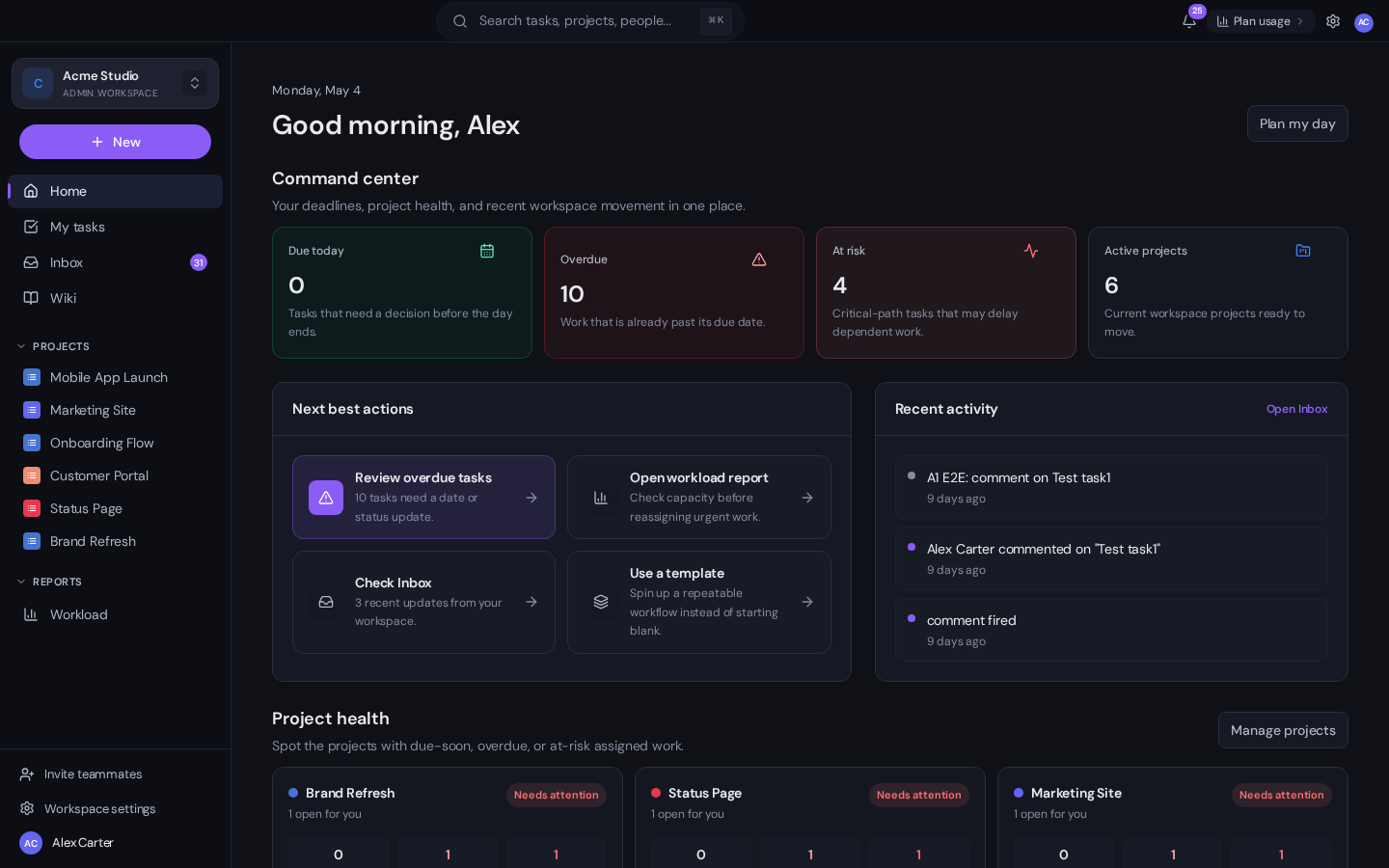
If you spend your day in Claude Code and your team’s work lives in Gravitask, those two surfaces should not be a copy-paste exercise. The Model Context Protocol (MCP) closes the gap. A single configuration line gives Claude Code structured, authenticated access to your projects, tasks, comments, time entries and wiki, both read and write. From the terminal you can then ask it to triage your sprint, draft a status update, file a follow-up, or untangle a slipped dependency.
This guide walks through the full setup end to end. You will generate an API key, register the Gravitask MCP server with the Claude CLI, verify the connection, and run your first real prompts against live project data. It takes about five minutes and requires a paid workspace: Pro includes read-only MCP, while Business includes full read/write MCP.
Who this guide is for
Anyone running Claude Code. Engineers, technical product managers, founders and ops leads who already use Gravitask for project management and want Claude to act on it, not just talk about it.
What you can do once Claude Code is connected to Gravitask
MCP is more than read-only context. The Gravitask server exposes the same primitives the app uses, including list_tasks, create_task, update_task, move_task, add_comment, log_time, get_critical_path and a dozen more, so Claude Code can execute multi-step work against your real backlog. Common workflows people set up on day one:
- Sprint triage. “Group every open task in Q3 Launch by priority and tell me which three are most likely to slip.”
- Stand-up prep. “Summarise everything assigned to me that moved in the last 24 hours.”
- Status reports. “Write a Friday update for the Brand Refresh project, grouped by Done / In Progress / Blocked.”
- Backlog grooming. “Find duplicate tasks across Bugs and Support, propose merges, then create the merged tasks for me to approve.”
- Dependency rewiring. “Task MAL-42 is going to slip by a week. Recompute the critical path and propose new due dates for downstream work.”
- Time tracking from a PR. “Log two hours against MAL-31 with a note linking to PR #482.”
Prerequisites
- A Gravitask workspace. Create one for free if you don’t have one yet. Upgrade to Pro for read-only MCP or Business for full read/write MCP.
- Claude Code installed. Run
npm install -g @anthropic-ai/claude-codeor follow the official installation guide. - Workspace admin access in Gravitask. The API & MCP page is admin-gated. If you’re a member, ask your admin to generate the key.
Step 1. Generate a Gravitask API key
Open Gravitask, click the gear icon in the top-right (or your avatar) and head to Settings → Developer → API & MCP. The page is split into two cards. The MCP Connection block at the top gives you the server URL and a ready-made desktop-client config. The API Keys list sits below it.
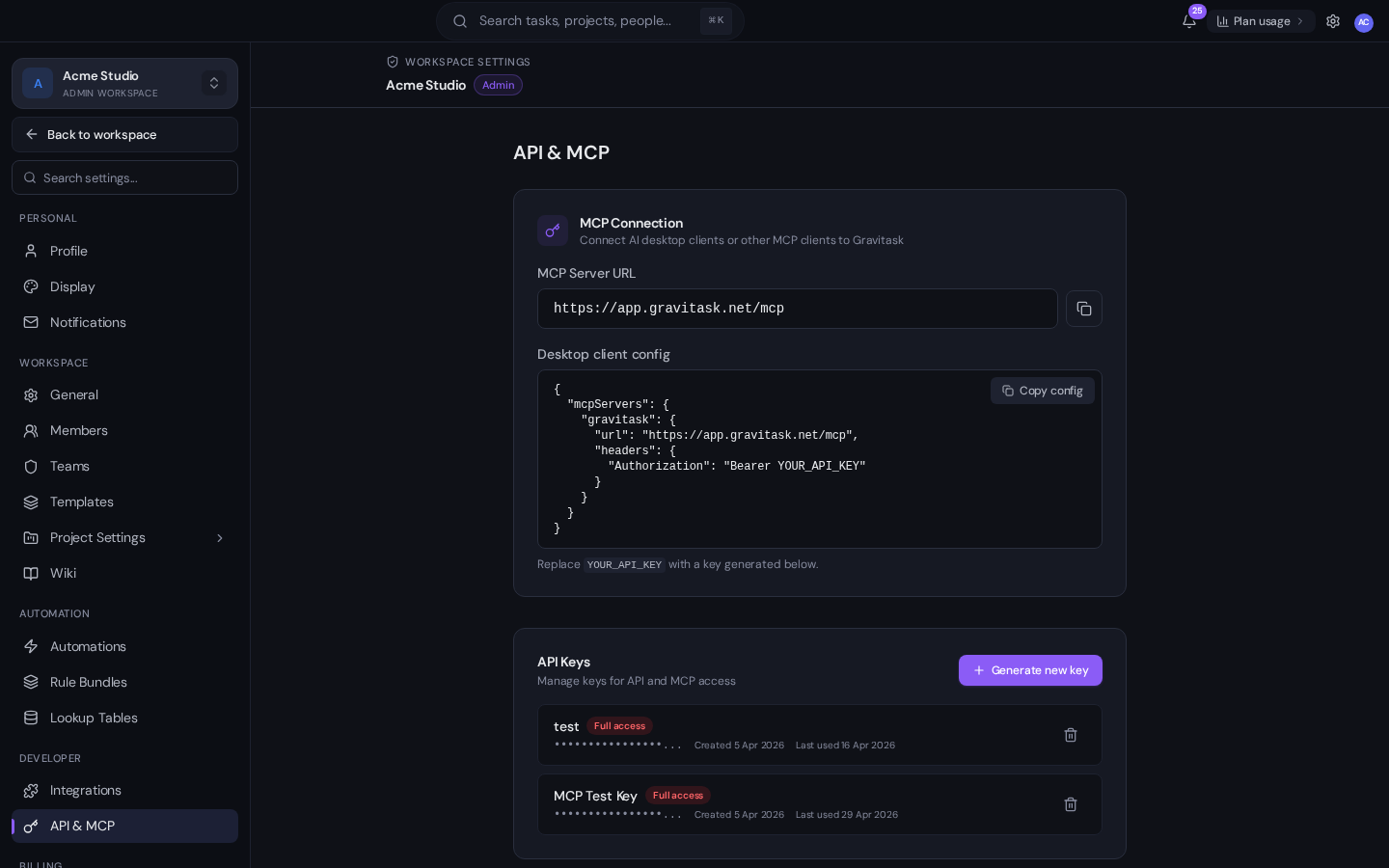
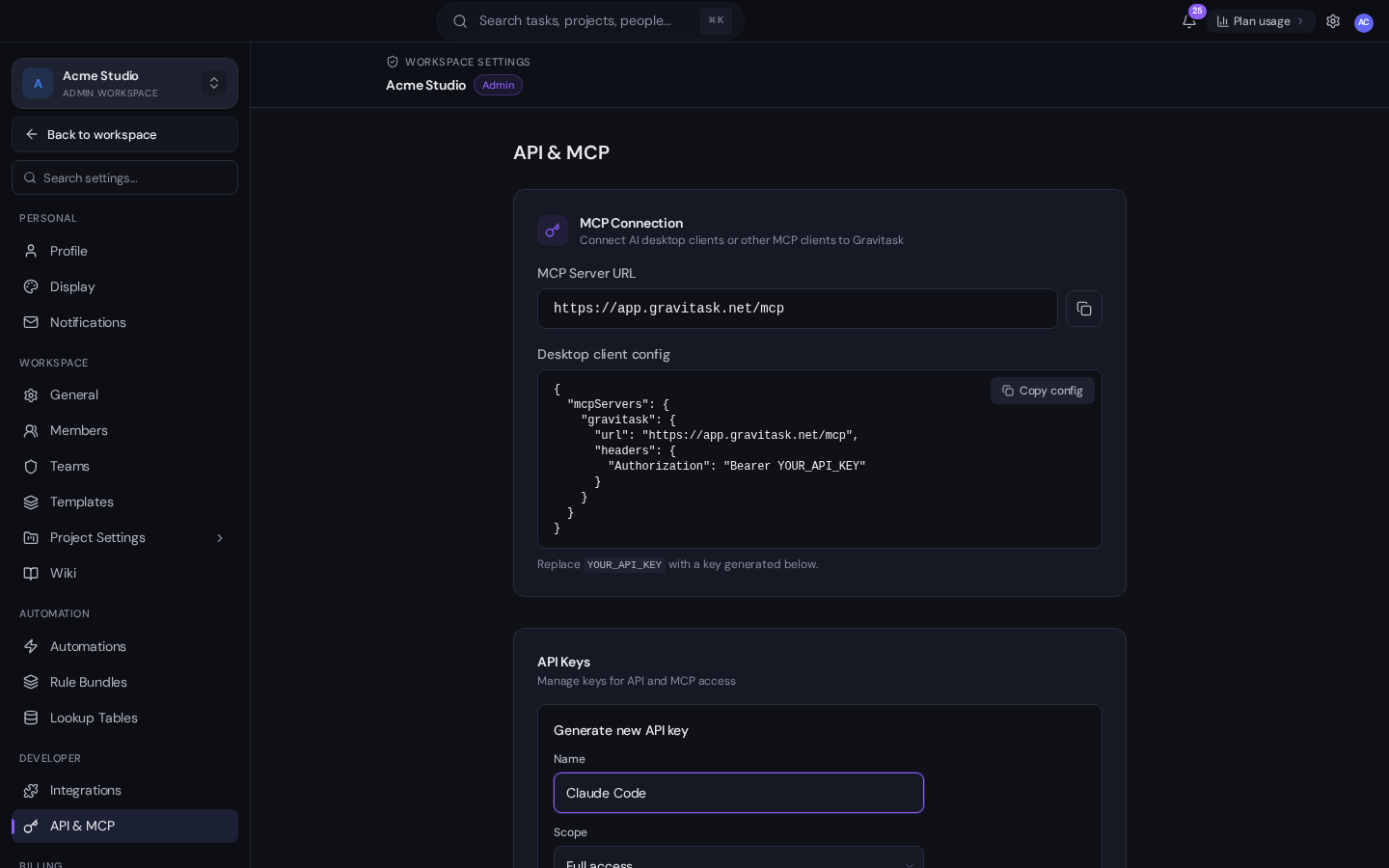
Click Generate new key, give it a recognisable name (we use Claude Code) and choose a scope. Read only is the right choice if you want Claude to summarise and report but never mutate. Read & Write lets it create and edit tasks. Full access also covers destructive actions like deleting tasks. Pick the lowest scope that does the job.
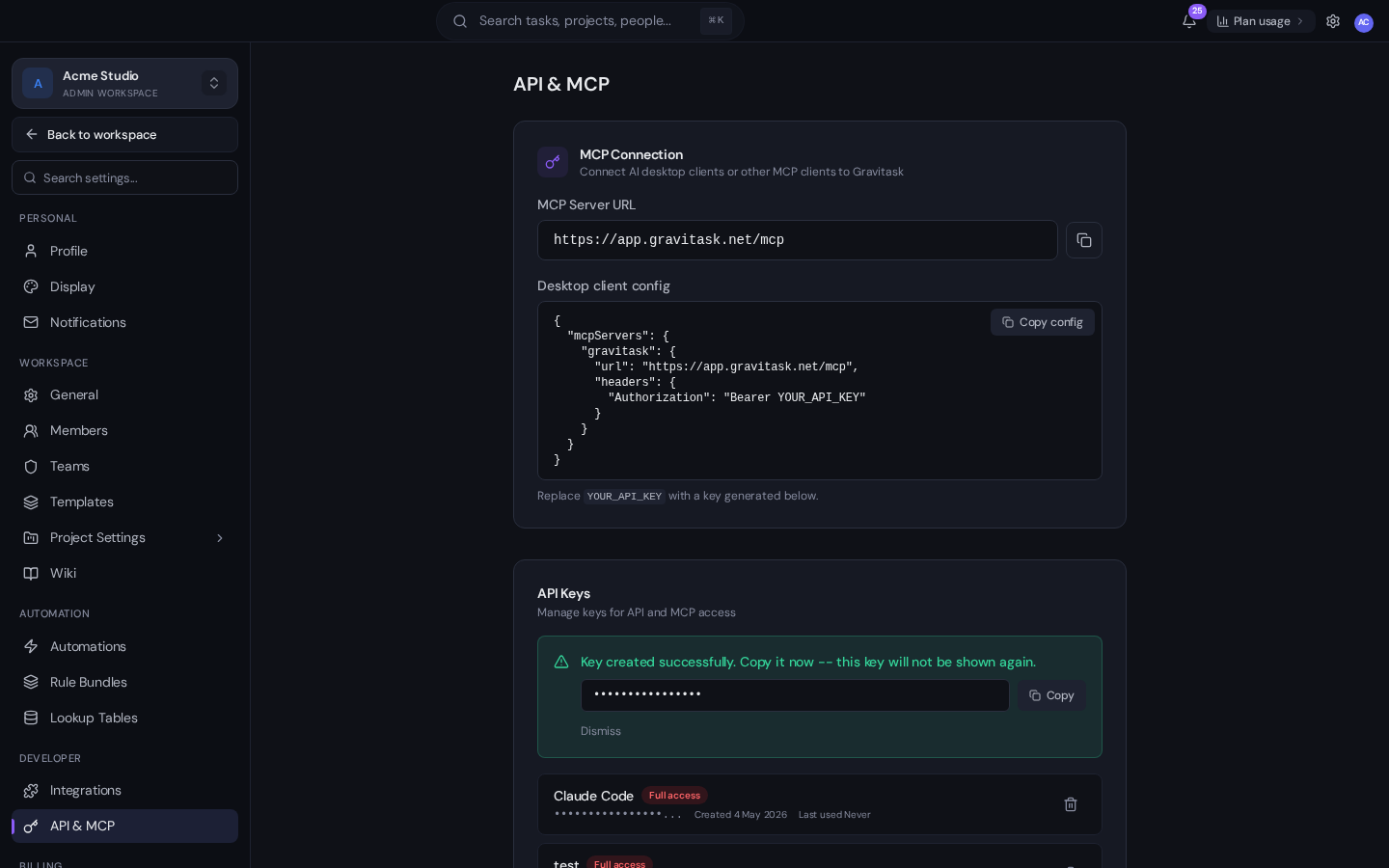
You only see the key once
When you click Generate, the full key appears in a one-time banner. Copy it immediately. Gravitask only stores a hashed prefix and there is no way to retrieve the secret again. If you lose it, revoke and re-generate.
Step 2. Add Gravitask as an MCP server in Claude Code
With the key on your clipboard, open a terminal and register the Gravitask MCP server with an Authorization header. This API-key path means Claude Code connects straight to the real Gravitask tools, without waiting for the OAuth authentication prompt.
export GRAVITASK_API_KEY="YOUR_API_KEY"
claude mcp remove gravitask -s local 2>/dev/null || true
claude mcp add-json gravitask '{"type":"http","url":"https://app.gravitask.net/mcp","headers":{"Authorization":"Bearer ${GRAVITASK_API_KEY}"}}'
Replace YOUR_API_KEY with the value from the previous step. The command removes any previous OAuth-only Gravitask entry, then writes a header-backed HTTP server config to your local Claude Code settings. Keep GRAVITASK_API_KEY set in the shell where you start claude.
Project-scoped vs global
Add --scope project to the claude mcp add-json command if you want this MCP server to only be available inside the current repo. That is handy when one repo uses a different workspace than another. Without that flag, the server is registered locally for your user in the current project.
Step 3. Verify the connection
Start an interactive session with claude from any directory. The startup banner lists every MCP server it managed to connect to and how many tools each exposes. You should see gravitask with 27 tools.
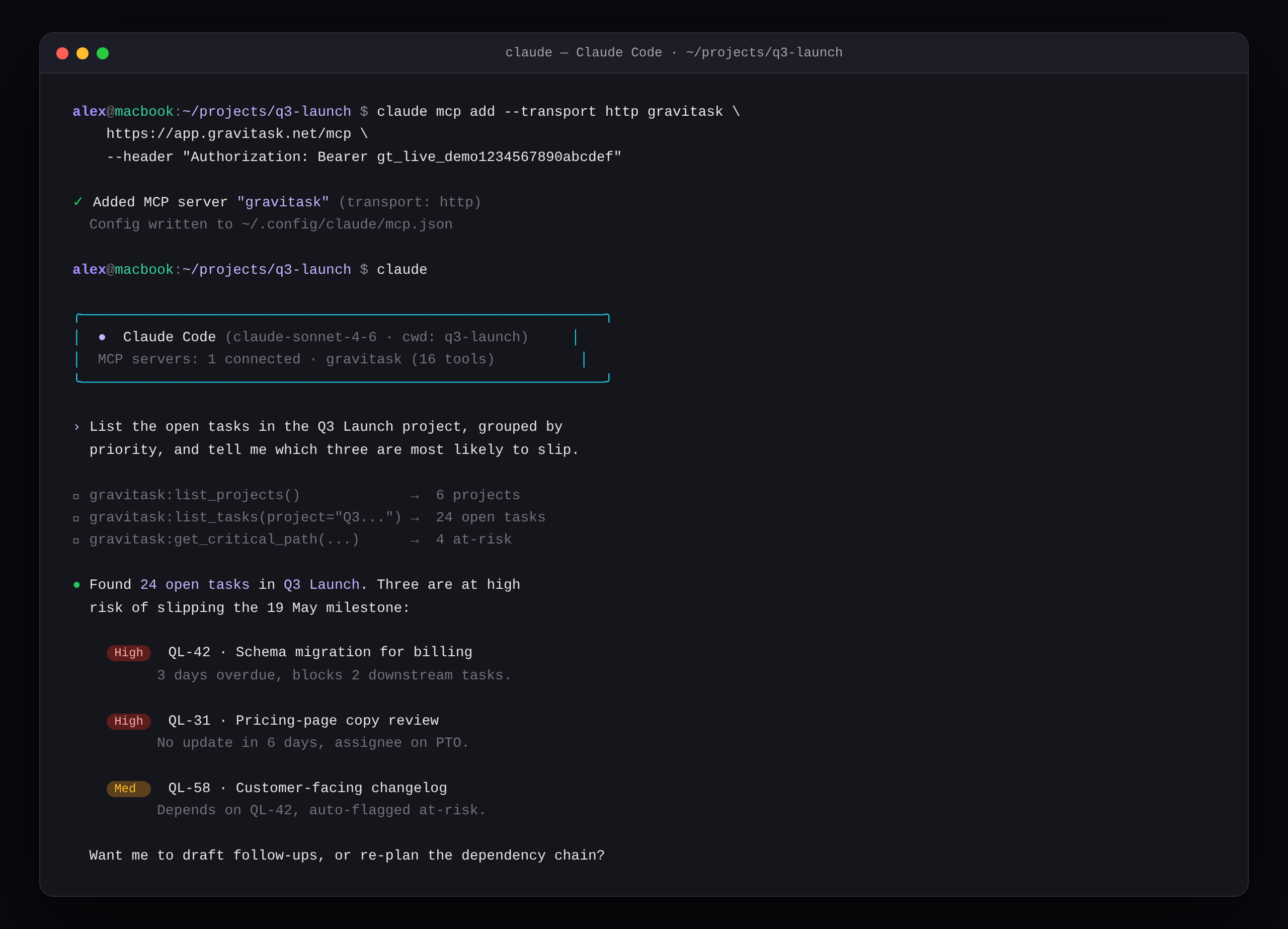
If you don’t see gravitask in the banner, run claude mcp list to confirm it’s registered, then claude mcp get gravitask to surface the connection status. The most common causes are a missing GRAVITASK_API_KEY, a revoked key, or your workspace admin disabling MCP under Settings → Integrations.
Step 4. Try your first prompts
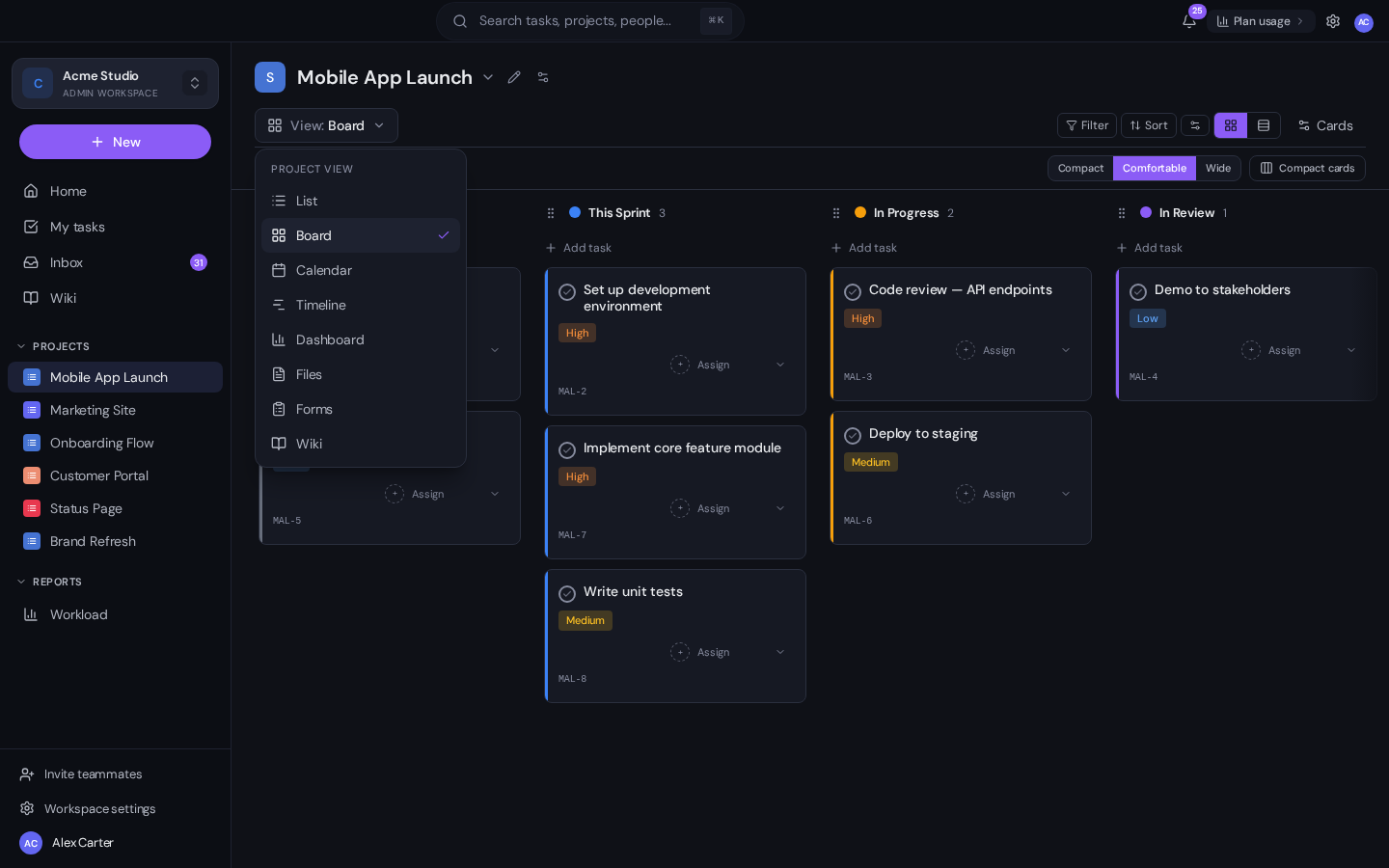
Now the fun part. Drop these into a Claude Code session and watch it call the right tools, in order, against your real workspace:
- “List every project I’m a member of and the count of open tasks in each.”
- “In the Mobile App Launch project, find tasks in `In Progress` with no comment in the last 5 days and add a polite nudge comment asking for a status update.”
- “Summarise the last 7 days of completed tasks in the Brand Refresh project. Group by section and write it as a Friday team update.”
- “Create a task in the Bugs project: title ‘Login form rejects @ in passwords’, priority High, assignee me, due Friday.”
Claude asks before writing
By default, Claude Code asks for permission before any tool call that mutates state. That covers creating, updating, moving or deleting tasks, posting comments, and logging time. You can pre-approve specific tools (or all tools) for a session if you want a hands-off agentic flow, but the safe default is review-then-execute.
Real workflows worth setting up on day one
Morning brief
First prompt of the day: “List everything assigned to me that’s due in the next 48 hours, then anything on a project I own that has changed in the last 16 hours.” Claude Code returns a tight punch list before you’ve opened the Gravitask UI, and you can immediately follow up with “reorder these by criticality and add a one-line plan for each.” The 16-hour window is just a rough overnight cut; pick whatever interval matches your routine.
Pull request to task linking
When you finish a PR, ask Claude Code to find the matching Gravitask task by short ID (it understands project-name prefixes such as GRA-81), move it to In Review, post a comment with the PR link, and log the time you tracked locally. One sentence, four MCP calls, everything stays in sync.
Friday status digest
Pipe the question “Draft a Friday update for the Q3 Launch project: Done, In Progress, Blocked, At risk, with bullets and assignee initials” into Claude Code, and it returns a clean Markdown digest you can paste into Slack or send through the Gravitask wiki. Combine with the Gravitask Workload report for a manager-friendly version.
Sprint planning over the critical path
Before sprint planning, ask “Run getcriticalpath on Q3 Launch and tell me which two tasks, if delayed by a day, would slip the milestone the most.” Claude Code reasons over the dependency graph that Gravitask already maintains, so the answer is grounded in real data rather than a guess.
Troubleshooting
Authorization failed / 401
The bearer token is wrong, missing, or revoked. Re-check the value in Settings → Developer → API & MCP. If the key is missing from the list, generate a new one, export it as GRAVITASK_API_KEY, and run the claude mcp add-json command above again.
Tool not found
Workspace admins can disable individual MCP tools under Settings → Integrations → MCP. If a specific tool (for example delete_task) is missing, that is by design. Ask the admin to enable it, or rephrase the prompt to use a non-destructive equivalent.
Claude doesn’t list gravitask on startup
Run claude mcp list to check whether the server is registered. If it is, run claude mcp get gravitask to print the connection status. Confirm the server URL is https://app.gravitask.net/mcp and that GRAVITASK_API_KEY is set before starting Claude Code.
Security notes
- Keys are workspace-scoped. A key generated in one workspace can’t see another, even if the same user is an admin in both. Generate a separate key per workspace.
- Hashed at rest. Gravitask only stores a hashed prefix of each key. Lose it and it’s gone. There is no “show secret” button.
- Rotate regularly. The API & MCP page shows the last-used timestamp for each key. If a key hasn’t been used in months, revoke it.
- Per-tool disable. Admins can disable any MCP tool for the whole workspace, so a “read-only for AI” policy is enforceable from the server side, not just the client.
FAQ
Does this work with Claude Desktop too?+
Yes. The same Gravitask MCP server works with Claude Desktop, Cursor, Windsurf, VS Code (Copilot), JetBrains IDEs, Cline and Amazon Q. The full per-client setup is on the Gravitask MCP setup page.
Is there a separate MCP plan or add-on?+
No. MCP does not need a separate add-on. Pro includes read-only MCP at £5/user/month, and Business includes full read/write MCP at £14/user/month.
How many MCP tools does Gravitask expose?+
27, grouped into Wiki, Projects, Tasks, Comments, Time tracking, Search, Workspace, Tags and Planning. Admins can disable individual tools per workspace from Settings → Integrations.
Can Claude Code create automation rules in Gravitask?+
Not directly through MCP today. Automations are built through the Automations UI or via the natural-language rule drafter. Claude Code can plan rules and dictate the trigger/action pair, then you paste it in.
Does it support short task IDs like GRA-81?+
Yes. The get_task tool resolves both internal task UUIDs and human-readable short IDs based on the project name prefix and task number, so you can paste a short ID straight from a PR description.
Can I use this in CI?+
Yes. Generate a Read-only key, store it as a CI secret, and call the MCP endpoint from a Claude Code or Anthropic SDK script. Common patterns include writing a release-notes block from completed tasks, or failing a build if the linked Gravitask task is missing acceptance criteria.
Next steps
Once Claude Code is wired into Gravitask, the obvious next move is to wire the same key into your editor. Cursor, Windsurf and VS Code all use the same configuration shape. After that, look at Gravitask’s native automations for the work that doesn’t need an LLM in the loop, and reserve Claude Code for the planning, writing and judgement calls that do.
If you don’t have a Gravitask workspace yet, start one for free. No credit card and no trial timer. Upgrade when you are ready to connect MCP.
Try Gravitask and MCP
Start free, connect MCP when ready.
No credit card. No trial timer. Pro adds read-only MCP at £5/user/month, and Business adds full read/write MCP at £14/user/month.