Automation
AI task automation: what to delegate
A practical, opinionated playbook for AI task automation: what to delegate to AI, what to keep with humans, the seven highest-ROI plays you can set up this month, a four-week rollout that does not blow up your team's trust, and the three numbers to track once it is live. Built around real workflows we run inside Gravitask.
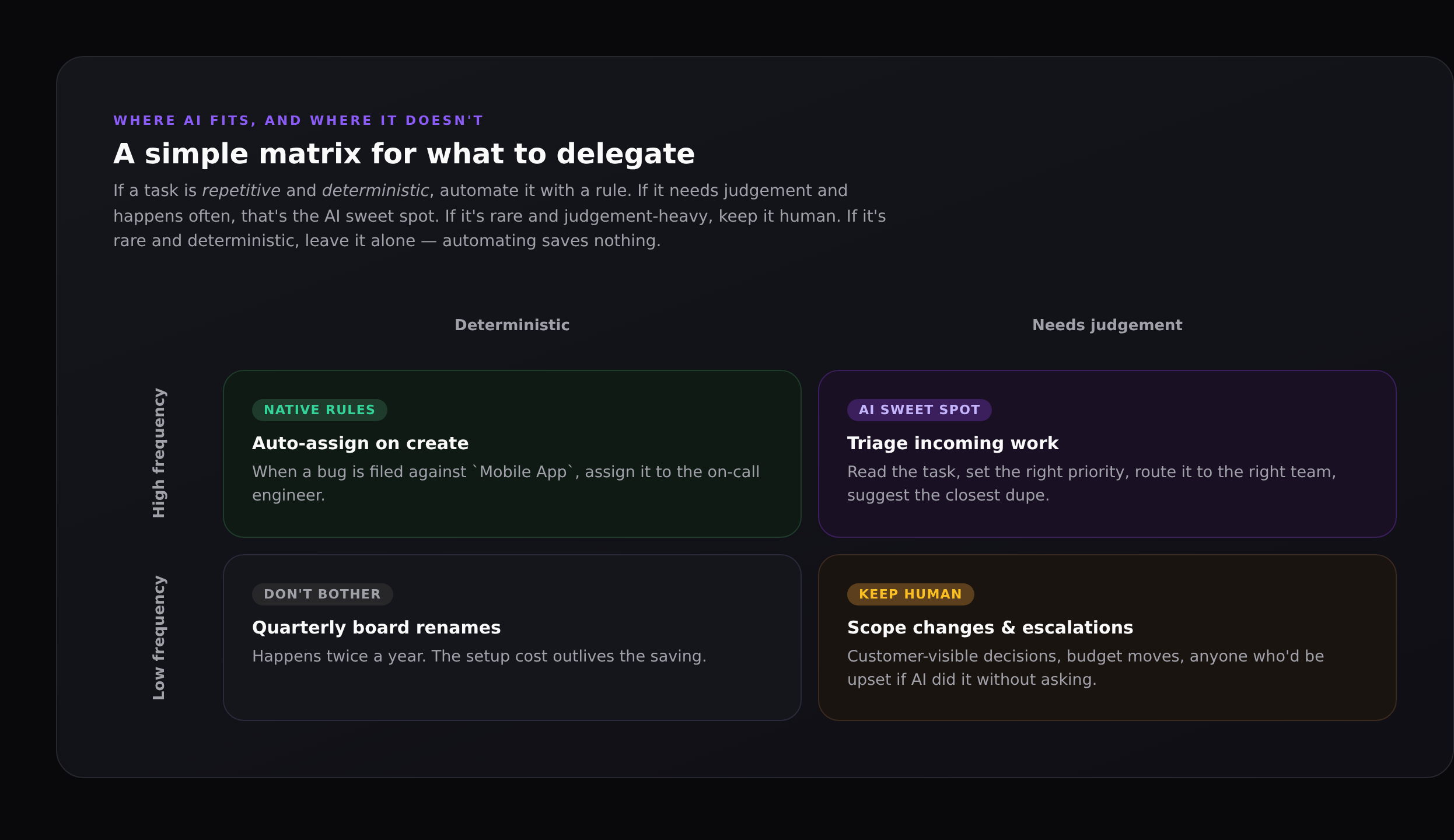
AI task automation is one of those phrases that means everything and nothing. Most posts on the topic read like a wishlist of "AI will summarise meetings and write your emails!" without a real opinion on what to actually delegate, when to keep humans in the loop, and how to roll it out without making your team distrust the tool. This is the playbook we run inside Gravitask and the one we recommend to teams when they ask us where to start.
It is built on one boring observation: AI is not a replacement for deterministic automation, and deterministic automation is not a replacement for AI. They are different tools for different problems, and the best AI task automation programmes use both, deliberately. The matrix above is the framework we keep coming back to.
TL;DR
Use deterministic rules for high-volume, predictable work (auto-assign, auto-tag, escalate after N days). Use AI for high-volume judgement work (triage, status writing, dependency reasoning). Keep humans for rare or irreversible decisions (scope, people, customer-visible writing). Roll AI in over four weeks: read-only, then dry-run, then live with measurement.
The honest framework: rules vs AI vs humans
Most teams default to one of two failure modes. Either they automate everything they can build a rule for and end up with a sprawling rule mesh nobody understands; or they treat AI as a magic intern and ask it to do everything, then lose trust the first time it does something silly. The matrix avoids both:
- High frequency, deterministic → use a native automation rule. Auto-assign new bugs to the on-call engineer. Auto-tag tasks coming from
support@withcustomer-support. Move anything stale for 30 days to the archive section. - High frequency, needs judgement → this is the AI sweet spot. Read the task, set the right priority, suggest the closest duplicate, draft the status update.
- Low frequency, deterministic → don't bother. The setup cost outlives the saving. Quarterly board renames are a quarterly chore.
- Low frequency, needs judgement → keep human. Scope changes, escalations, customer-visible decisions. The cost of being wrong is high; the saving from automation is small.
A useful rule of thumb
If two reasonable people on your team would do the work in noticeably different ways, it needs judgement. If they would do it identically, it is deterministic. Match the tool to the task.
Seven highest-ROI plays for AI task automation
These are the seven workflows we see teams adopt first, ranked roughly by time saved per week. Each one is a real, working pattern you can set up in Gravitask today. The first three are deterministic rules; the rest are AI-driven.
1. Auto-assign by inbox or label
When a task lands in the Bugs project, assign it to the on-call engineer. When a task is created from a customer email, assign it to support and tag it inbound. This is a one-time setup that saves the team from "who picks this up?" pings forever after. No AI required.
2. Stale-task escalation
A native automation rule that says: when a high-priority task has had no comment in five working days, post a chase comment, then re-assign to the manager if it goes another two days. Cuts the slow-burn miss rate without anyone tracking it manually.
3. Recurring task templates
Use Gravitask's recurring tasks for the obvious cadences (Monday standup notes, monthly billing review, quarterly OKR check-in). The point isn't the time saved creating the task; it is that the team stops needing to remember.
4. AI triage on incoming work
When a task is created in an inbox, Claude (via MCP) reads the title, description and any attachments, then suggests a priority, owner team, tags, and the closest existing duplicate. The suggestion lands as a one-click approve card on the task. Approve, edit, or override; either way the action is logged.
5. Friday status digest
Every Friday at 4pm, Claude pulls the last seven days of completed tasks, in-progress work, blockers and at-risk items from a project, then writes a clean Markdown digest grouped by section. Posts it to the project wiki and pings the project channel. Replaces a 30-minute weekly chore for the lead.
6. Backlog grooming runs
Once a fortnight, ask Claude to find tasks with no activity in the last 60 days, propose merge or archive for each, and present the list as a numbered batch. The PM scrolls through, approves the obvious ones, defers the rest. Same effect as a manual grooming session, a tenth of the time.
7. Dependency rewiring after a slip
When a task moves from In Progress to Blocked or its due date moves out, Claude recomputes the critical path, identifies which downstream tasks now have new realistic due dates, and proposes the changes for approval. The kind of work that nobody does in real life because it is too painful, and the kind AI is genuinely better at than a tired person on Friday afternoon.
What you should not automate
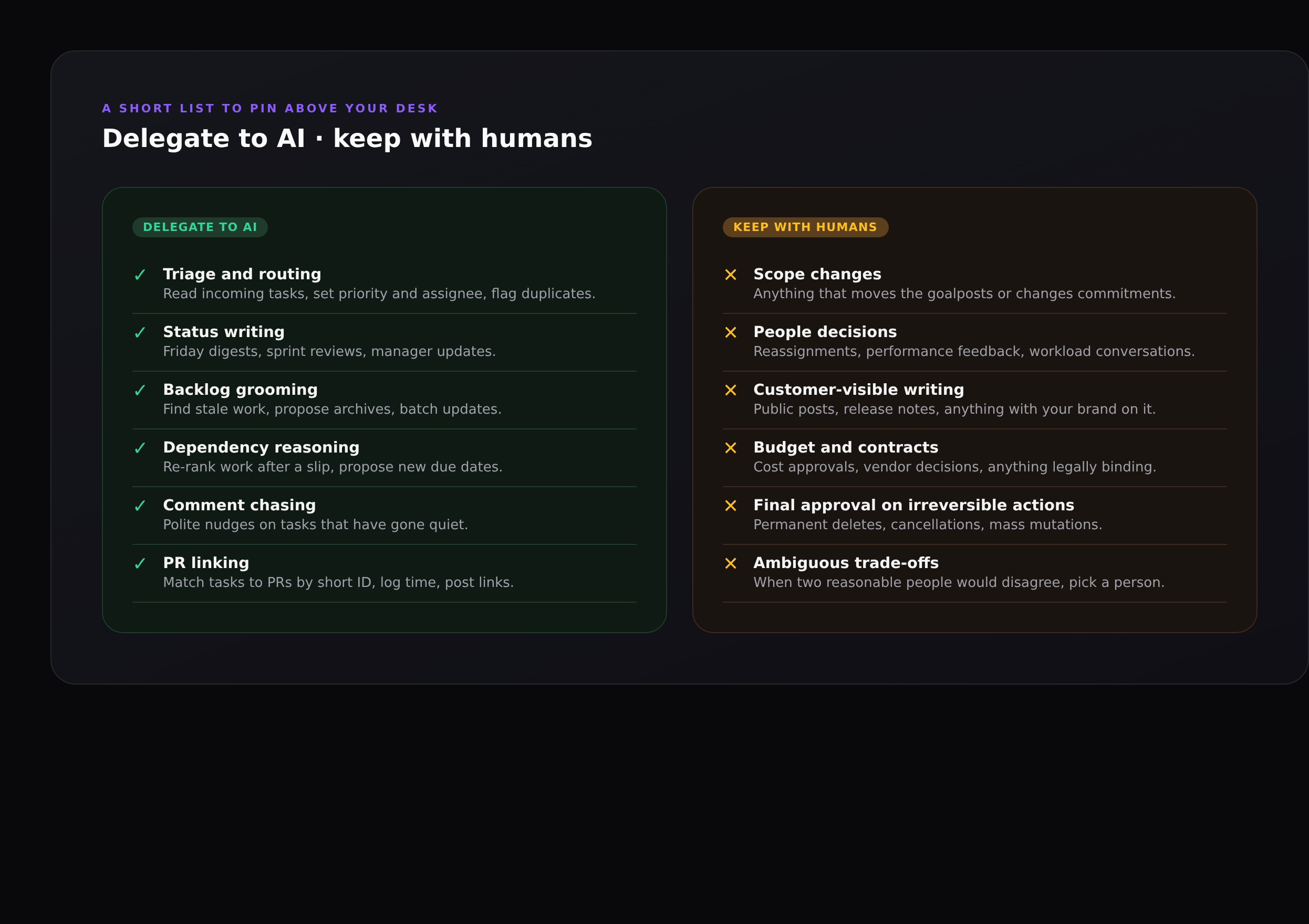
The thing nobody writes about in AI automation posts is the list of things you should not automate. Without that list, "automate everything you can" leads to AI making people-impacting decisions, and the team learns to stop trusting the system. The right pattern is the opposite: be loud and deliberate about what AI is not allowed to do.
- Scope changes. Adding or removing a deliverable, moving a milestone, changing a commitment to a stakeholder. These are decisions that need a human to own.
- People decisions. Reassigning someone's work, performance feedback, anything that touches workload conversations. AI can propose; a person should decide.
- Customer-visible writing. Public posts, release notes, support replies, marketing copy. Use AI to draft, never to publish without review.
- Budget and legal moves. Cost approvals, vendor decisions, contract changes. Automating these creates audit problems even when the AI is right.
- Permanent deletes and bulk mutations. Deleting tasks, archiving projects, mass-updating dozens of records. Always require explicit human approval per batch.
- Ambiguous trade-offs. When two reasonable people on the team would disagree about the right answer, that is a sign a person should make the call.
A 30-day rollout that doesn't blow up trust
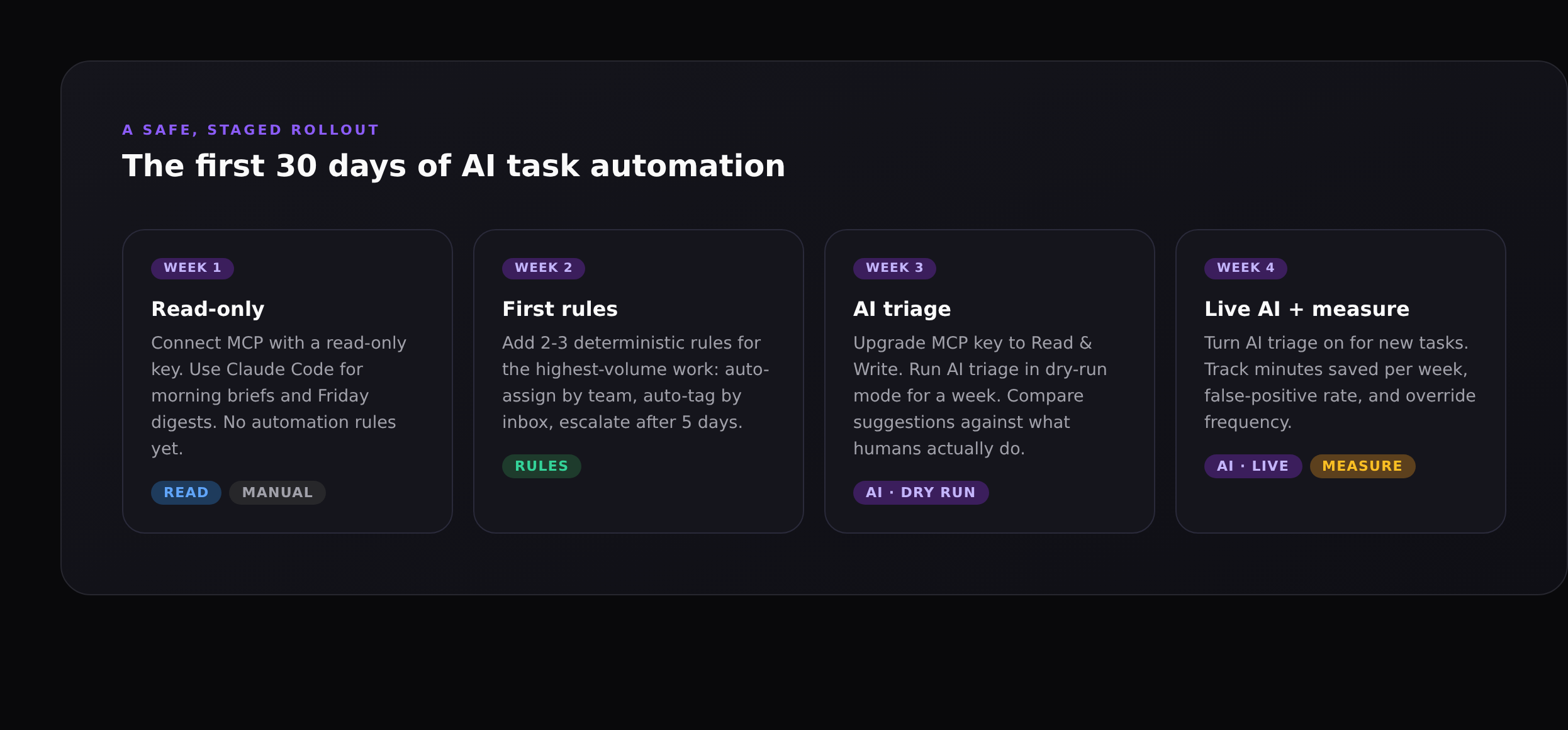
The single biggest reason AI automation programmes fail is that someone turns AI loose on day one with full write access, and the first time it does something surprising, the team turns it off and never turns it back on. The four-week rollout below is boring on purpose. It builds trust before granting power.
Week 1: read-only
Connect MCP with a read-only API key. Use Claude Code (or Claude Desktop) for morning briefs, Friday digests, and answering "where are we on Q3?" questions. No automation rules yet. Goal: prove the AI can read the data accurately and the team finds the answers useful.
Week 2: first deterministic rules
Add two or three native automation rules for the highest-volume work: auto-assign by team, auto-tag by inbox, escalate stale high-priority tasks. These are not AI; they are deterministic rules that should have existed before you ever heard of MCP. Doing them first lowers the noise in the inbox so AI triage in week 3 has a clean signal to work with.
Week 3: AI triage in dry-run
Upgrade the MCP key to Read & Write but turn AI triage on in dry-run mode for one week. The AI generates the priority, owner, tags and dupe suggestion for every new task, but it does not apply them. The team reviews the suggestions during their normal triage. Compare the AI's answer with the human answer and tally agreement rate. If you are above 80 percent, move to week 4. If not, refine the prompt or scope.
Week 4: live with measurement
Turn AI triage on for new tasks. Track three numbers in the wiki: minutes saved per week, percentage of suggestions accepted without edit, and override frequency by category. Review weekly for a month. After that, the system is part of how the team works.
Worked example: triage from 3 minutes to 12 seconds
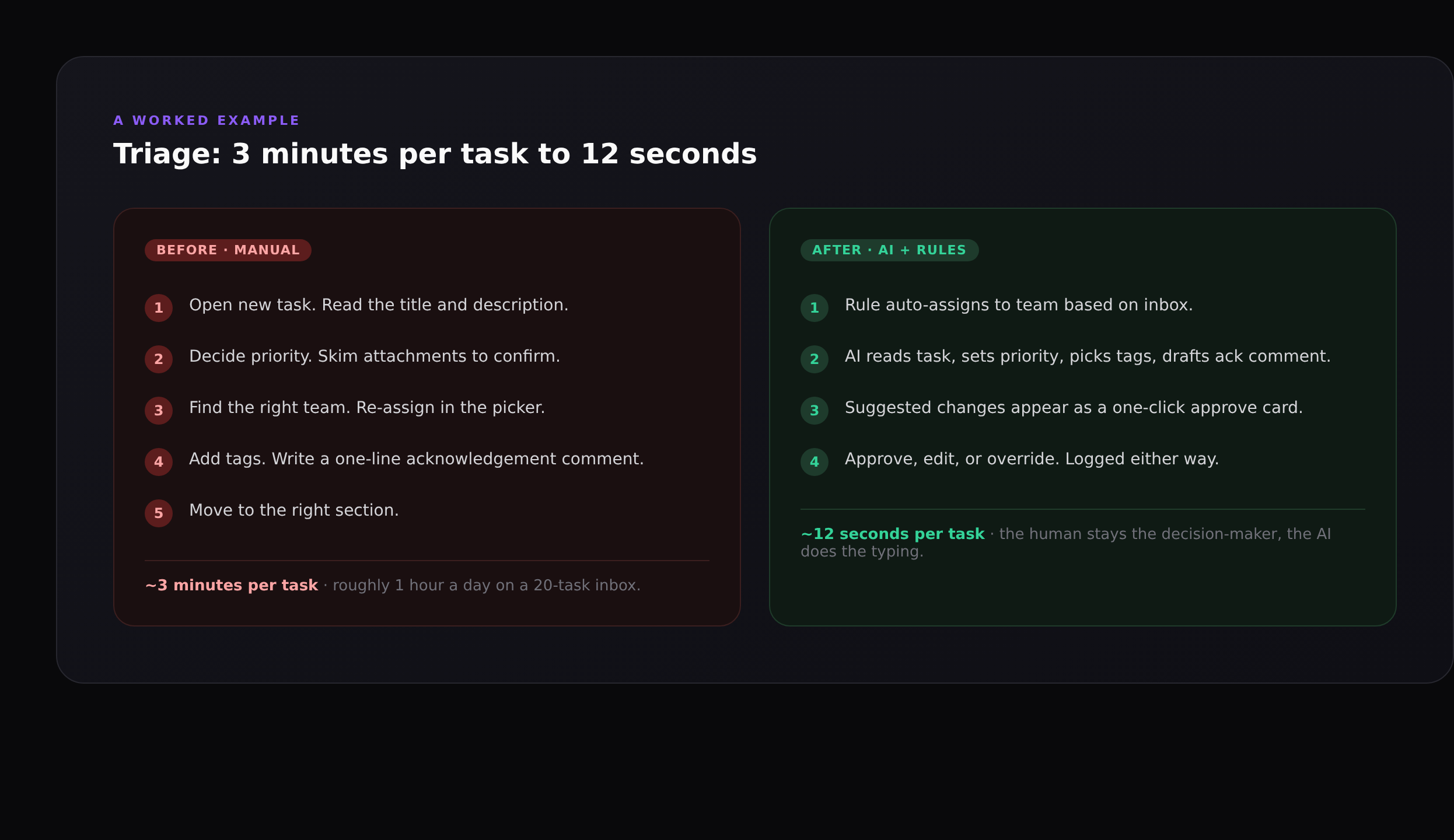
A 20-task daily inbox eats roughly an hour of someone's day at three minutes per task. After AI triage runs and the rule auto-assigns by team, the human reviews a one-click approve card with the AI's suggested priority, owner, tags and dupe link. They approve, edit, or override; the action is logged either way. Total time per task drops to about twelve seconds. The hour comes back.
The interesting design choice is that the human is still the decision-maker. AI never silently sets a customer-facing priority. The default action is "approve the AI's suggestion", and approving takes one click; the override is also one click. The team gets the speed benefit without losing accountability.
How to measure if it is working
Three numbers are enough to tell you whether your AI task automation is paying off:
- Minutes saved per week, by workflow. Estimate before, measure after, do the subtraction. If a workflow is not saving at least 30 minutes a week per active user, it is probably not worth running.
- Acceptance rate without edit. If the team accepts AI suggestions without modification 80%+ of the time, the AI is calibrated. If it sits at 50%, either the prompt needs work or the workflow is not a good fit for AI.
- Override-by-category breakdown. Look at where the AI is most often overridden. That is your prompt-tuning backlog. Overrides on
prioritymean your priority guidelines need refinement; overrides onassigneemean the AI doesn't know your team structure well enough.
Pin the metrics in the project wiki
Make the measurement public to the team. The fastest way to lose trust in an AI workflow is to never look at how it is doing. The fastest way to deepen trust is to publish the numbers and adjust openly when something is off.
Common failure modes
Automating low-frequency work
A rule that fires twice a year is rarely worth the engineering. The setup costs the same as one that fires daily, but the savings are 0.5%. Aim your automation budget at the high-volume work first.
Letting AI write to anything customer-visible
AI is great at drafting status updates and grooming the backlog. AI drafting a public release note is fine. AI publishing one is a brand risk. Always require human review for anything with your name on it.
Skipping dry-run
Dry-run for one week before going live with any AI write workflow. The cost is one week of slightly slower triage; the benefit is you catch the cases where the AI is confidently wrong before they hit production.
No override path
Every AI suggestion needs an obvious one-click override and an audit log. If the team can't see what AI did and reverse it cleanly, they will eventually stop letting it act.
How Gravitask supports the framework
Gravitask gives you both halves of the framework in one workspace:
- Native automations for the deterministic half. Trigger-action rules with conditions, dry-run mode, and a natural-language rule drafter that turns "when a task is moved to Done in Bugs, post to #qa-bots" into a working rule.
- MCP server for the AI half. Connect Claude Code, Claude Desktop, Cursor, Windsurf or any MCP-compatible client. The AI gets typed access to the same primitives the UI uses, with workspace-scoped keys and per-tool disable controls. Setup walkthrough: How to connect Claude Code to Gravitask.
- Audit log on everything. Every automation run and every MCP tool call is logged with who, what, when. You can answer "did the AI do that?" in one query.
- Read-only and Read & Write keys, scoped per workspace, individually revocable. The right shape for the staged rollout above.
FAQ
Is "AI task automation" different from "AI agents"?+
They overlap. AI task automation usually means AI doing one or two well-defined steps inside a workflow you control: triage a task, draft a status digest, propose a backlog cleanup. AI agents usually means AI taking a multi-step plan in a loop. Both rely on the same underlying tool access (MCP for project tools); the difference is how much autonomy you give the AI between checkpoints. The project management tools feature guide covers where each fits in a real workflow.
Do I need to write code to use AI task automation in Gravitask?+
No. Native automation rules are built in the UI (or drafted in plain English with the natural-language drafter). AI workflows are driven from Claude Code or Claude Desktop with one CLI command to connect; you never write code unless you want a custom integration.
How is this different from Zapier or Make?+
Zapier and Make are deterministic: a trigger fires, you map fields, an action runs. Great for the "high frequency, deterministic" quadrant of the matrix. They cannot do the "needs judgement" quadrant: read a task, decide a priority, find the closest duplicate. AI via MCP fills that gap. Most teams end up using both.
What if the AI gets it wrong?+
You build the workflow so the cost of being wrong is small. Suggestions, not silent actions. Dry-run before live. Read-only before read-write. One-click override with an audit log. If you do those four things, "AI got it wrong" becomes "AI suggested something wrong, the human caught it, the suggestion was logged for prompt tuning."
How long until we see ROI?+
Most teams see a measurable hour back per active user per week within the four-week rollout, and 3-5 hours per week within two months as more workflows come online. The biggest single saving is usually triage; the biggest qualitative change is usually status writing.
Will AI automation make my team redundant?+
No, and that is the wrong framing. AI task automation removes the part of the work that everyone hates: the typing, the chasing, the digest writing. It leaves the part that needs a person: the deciding, the trade-offs, the "is this the right thing to build?" questions. Teams that adopt AI automation well end up doing more interesting work, not less work.
Where to next
If you are starting from scratch, the fastest way to put the framework into practice is to wire Claude Code to your Gravitask workspace and try the morning brief and Friday digest from week 1: How to connect Claude Code to Gravitask walks through the setup. For the conceptual background on what MCP is and why it matters for project tools, see MCP for project management. For the broader product picture, the project management tools feature guide shows where automation sits alongside views, time tracking and the wiki.
Automation next steps
Turn the playbook into your first workflow.
Create a free workspace, map the repetitive handoffs, and upgrade when your team needs higher automation limits.