Project management
Project management tools: 10 modern team capabilities
A practical, screenshot-led tour of what a project management tool should do in 2026, illustrated with how Gravitask handles each capability. Multiple views, rich task data, time tracking, workload, automation, AI, knowledge base, governance, integrations and pricing that does not punish small teams.
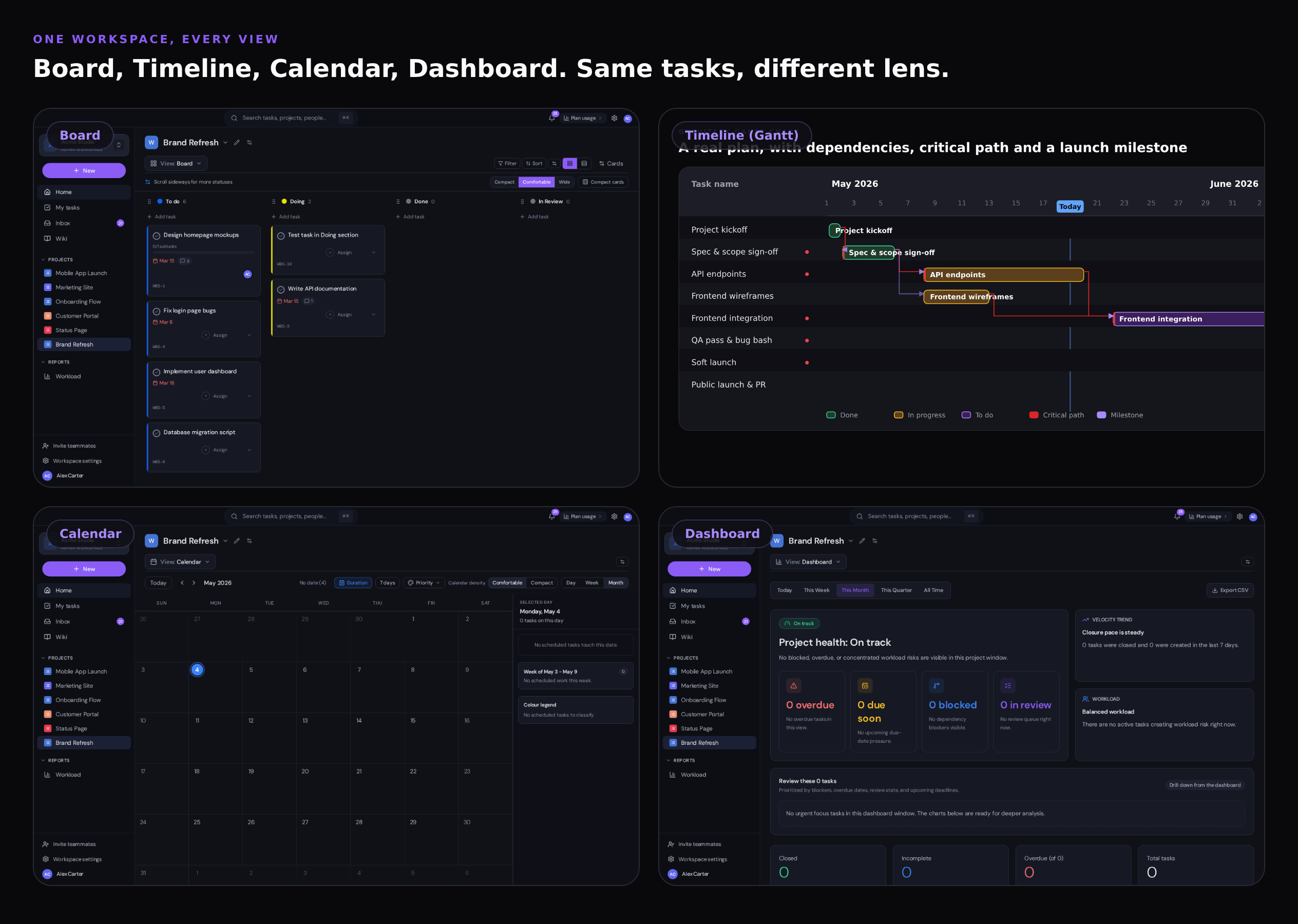
The phrase "project management tool" covers a category that has grown to mean something close to "the operating system your team works inside". The good ones combine task management, planning, time tracking, reporting, automation, knowledge management and integration with the rest of your stack. The mediocre ones force you to pick two or three of those and bolt the rest on with apps that do not talk to each other.
This guide is a screenshot-led tour of the ten capabilities a modern project management tool needs to have, and how Gravitask handles each one. The screenshots are from a real Gravitask workspace running the demo plan we use internally for new-team onboarding. If you want to skip ahead, start a free workspace and follow along; everything covered below is on the free tier or the first paid plan.
TL;DR
A modern project management tool needs five view types (List, Board, Timeline/Gantt, Calendar, Dashboard), rich task data (custom fields, dependencies, subtasks, comments, time), workload and capacity planning, automation and AI (rules + MCP), a built-in knowledge base, audit-grade governance, deep integrations with the apps your team already uses, and pricing that does not punish small teams. Gravitask covers all ten in a single workspace.
1. Multiple views over the same tasks
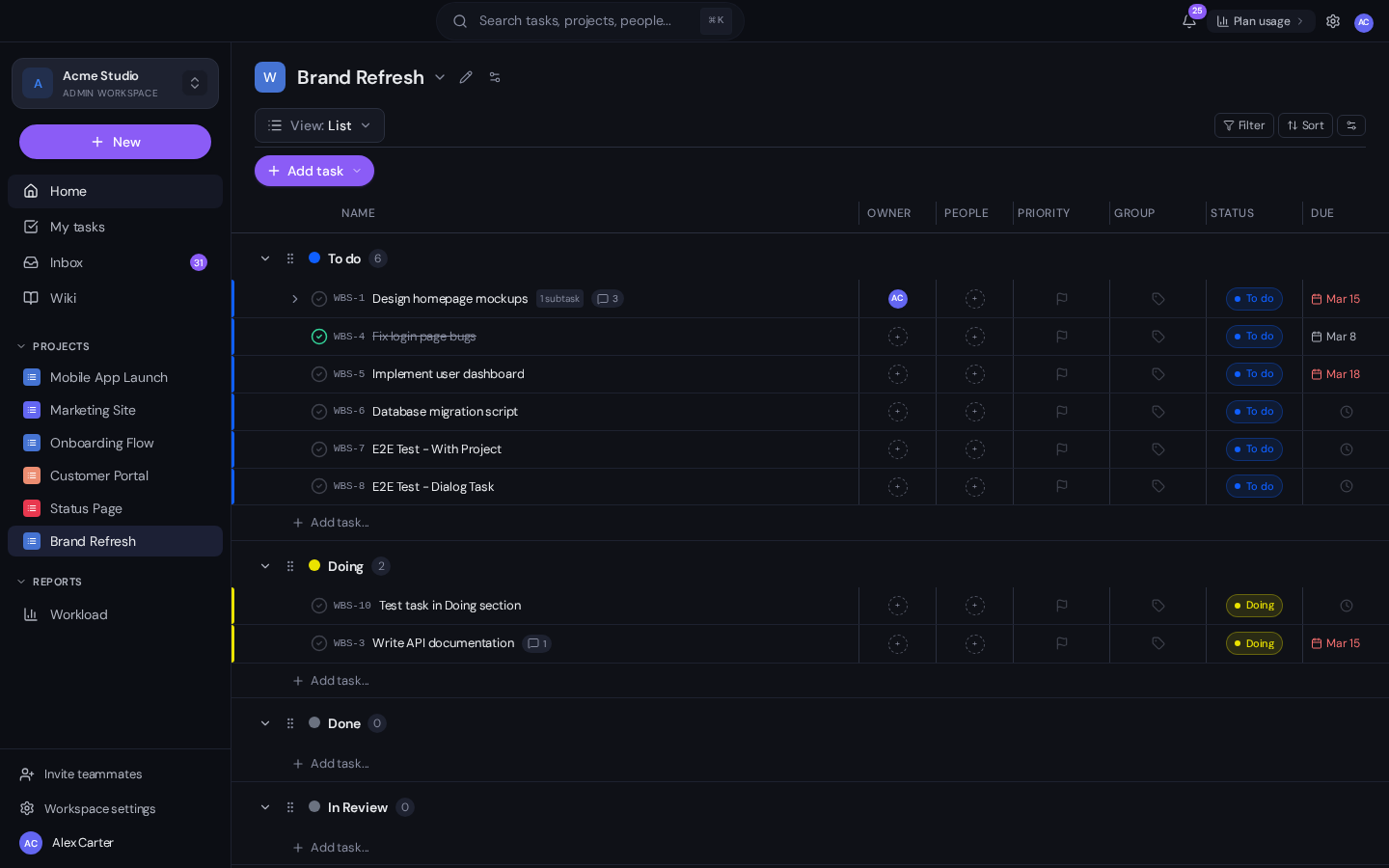
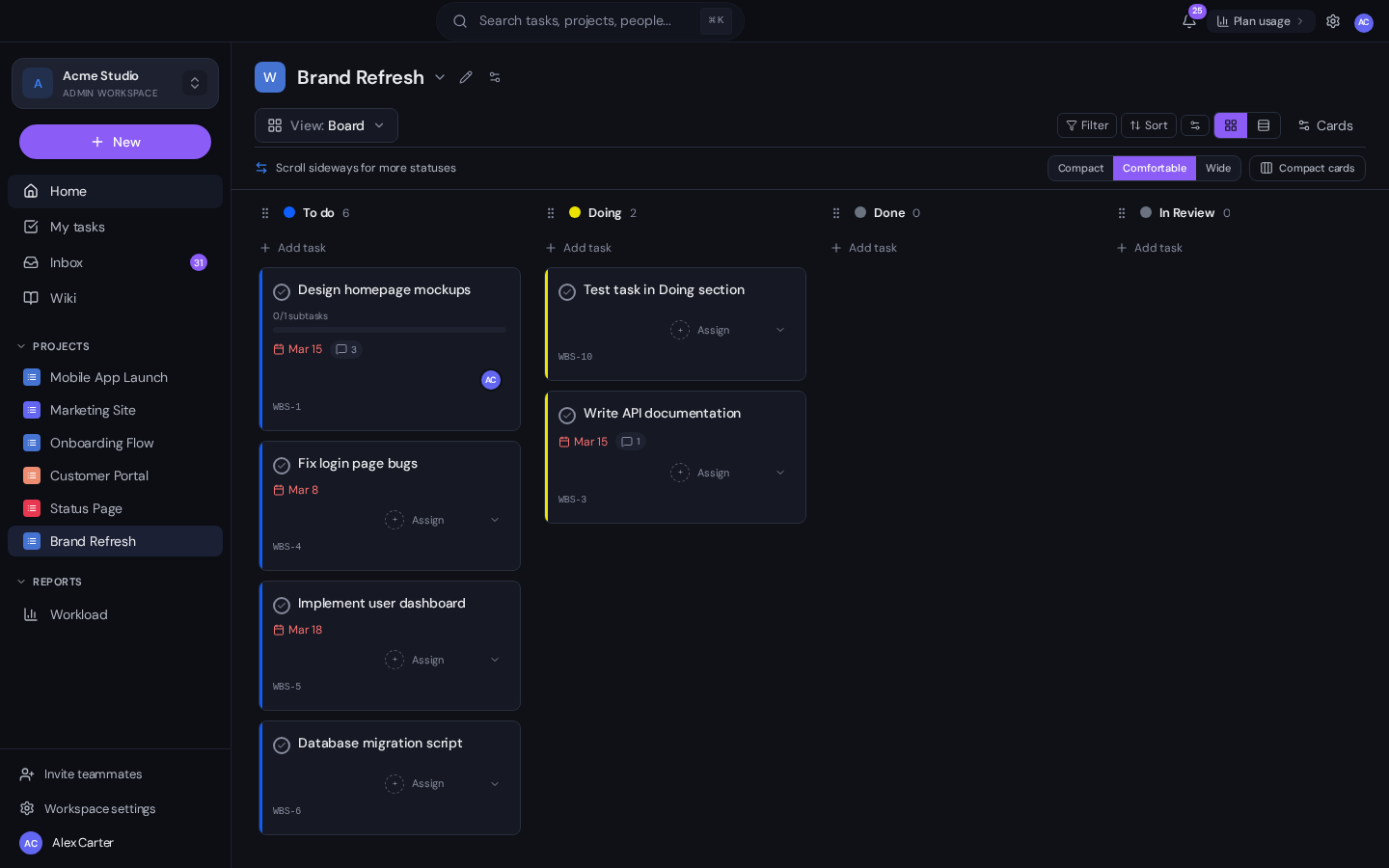
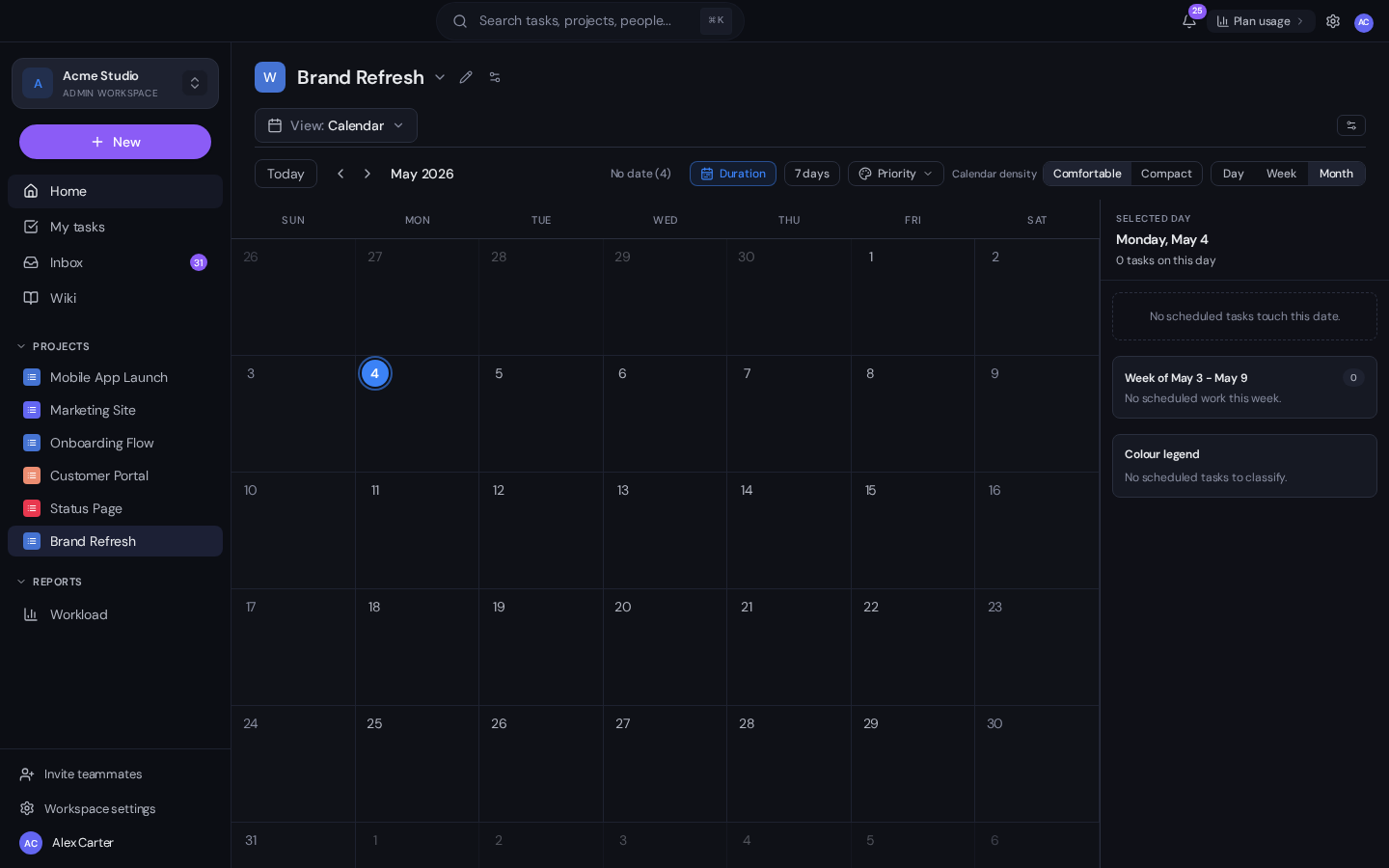
Different people need different views of the same work. An engineer wants a list. A PM wants a board. A delivery lead wants a timeline. A stakeholder wants a dashboard. The right project management tool gives you all of these without duplicating data, so changing a task in one view updates it in all of them.
List view, the daily driver
Board view, for flow
Timeline (Gantt) view, for planning
A proper Gantt view is essential for any project with a deadline. We covered the Timeline view in detail in How to use a Gantt chart in Gravitask: dependencies, critical path, milestones, density toggles and stakeholder export. The short version is that it is built into every project and works on every plan.
Calendar view, for the time-based brain
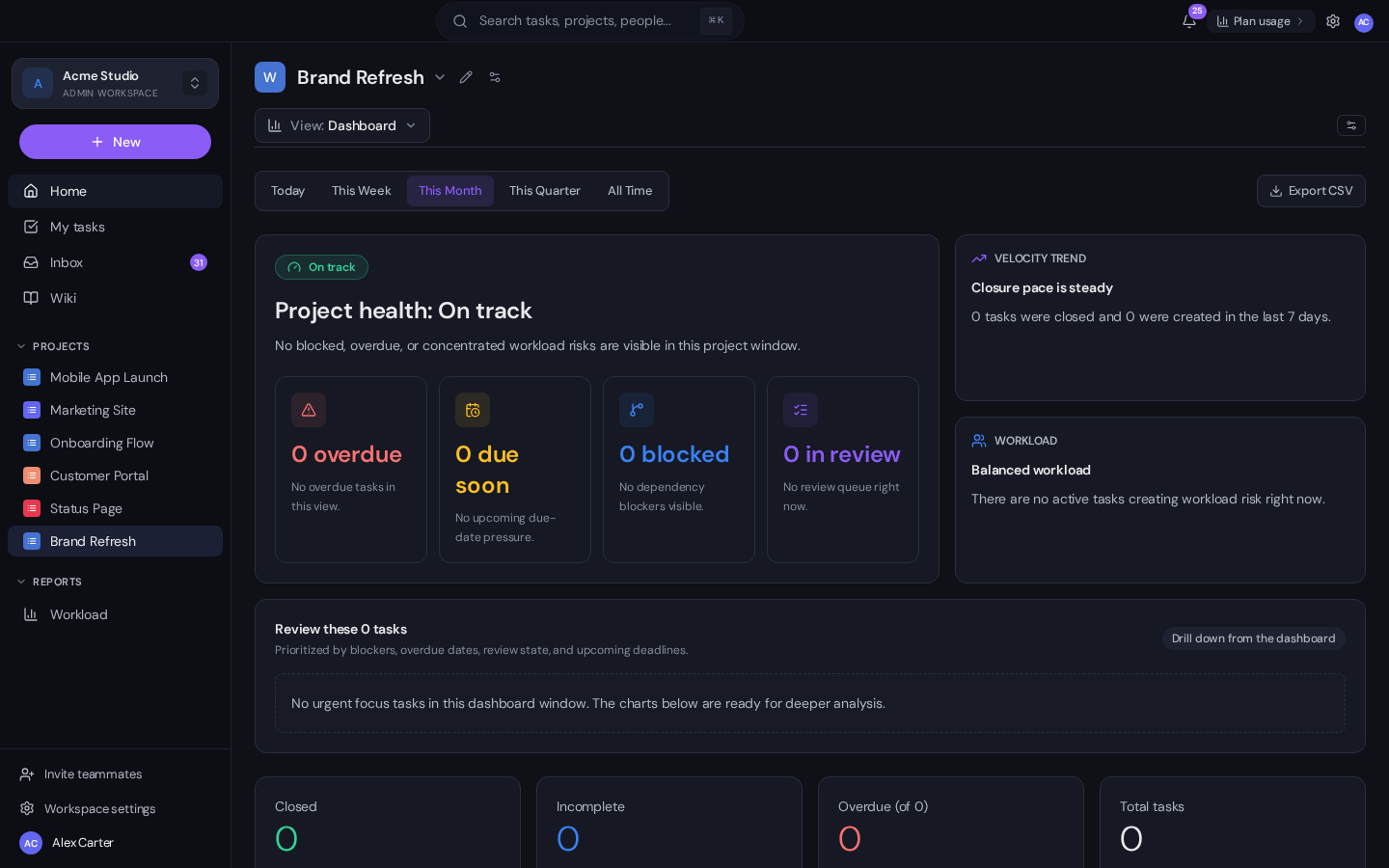
Dashboard view, for the status conversation
2. Rich task data with subtasks, dependencies and time
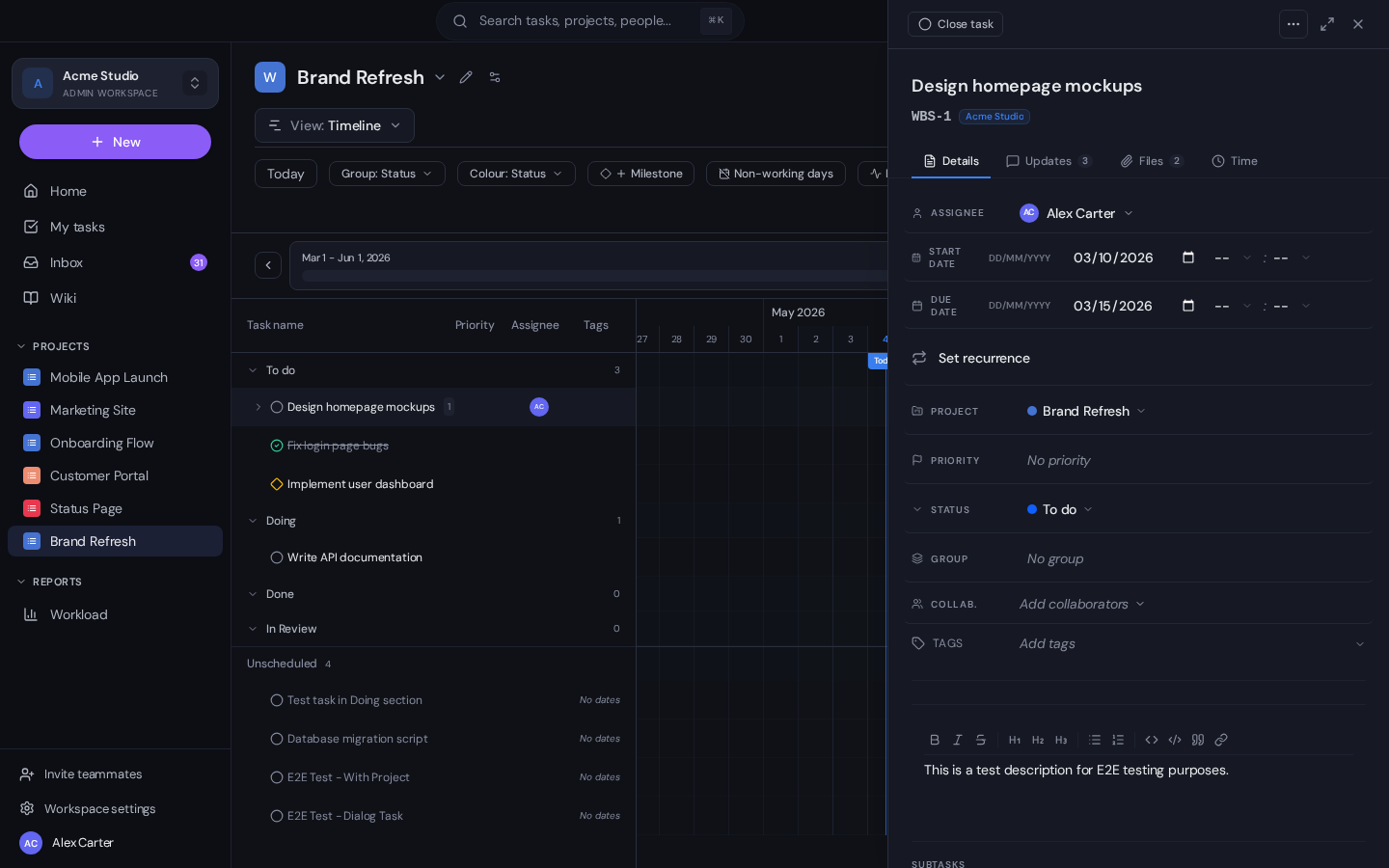
A task in Gravitask is more than a title and a checkbox. The drawer above gives every task: an assignee with capacity-aware suggestions, start and due dates with full recurrence rules, priority, status, section grouping, tags, collaborators, configurable custom fields, subtasks (one level deep, more on Business plans), task-level dependencies (predecessors and successors), threaded comments with @-mentions, file attachments up to 100 MB on Free, and built-in time tracking.
The work-breakdown-structure ID (MAL-42 style short IDs) is shareable across the workspace, MCP, Slack and Git commits, so you can reference a task from a PR description without ambiguity.
3. Time tracking that lives next to the task
Time tracking is one of those features where the wrong implementation is worse than no implementation. Gravitask logs time directly against the task in the same drawer, so the data lives where the work is. The Time tab on each task shows individual entries with notes; the project-level Time view rolls up by assignee, day or week.
- Manual entry for retrospective logging ("logged 2 hours yesterday on MAL-31").
- Built-in timer for live tracking, accessible from the task drawer or a small floating widget.
- MCP `log_time` tool for AI-driven logging from Claude Code: "log two hours against MAL-31 with a note linking to PR #482" runs the right tool and posts the entry.
- Per-user weekly capacity, used by the Workload report below.
4. Workload and capacity planning
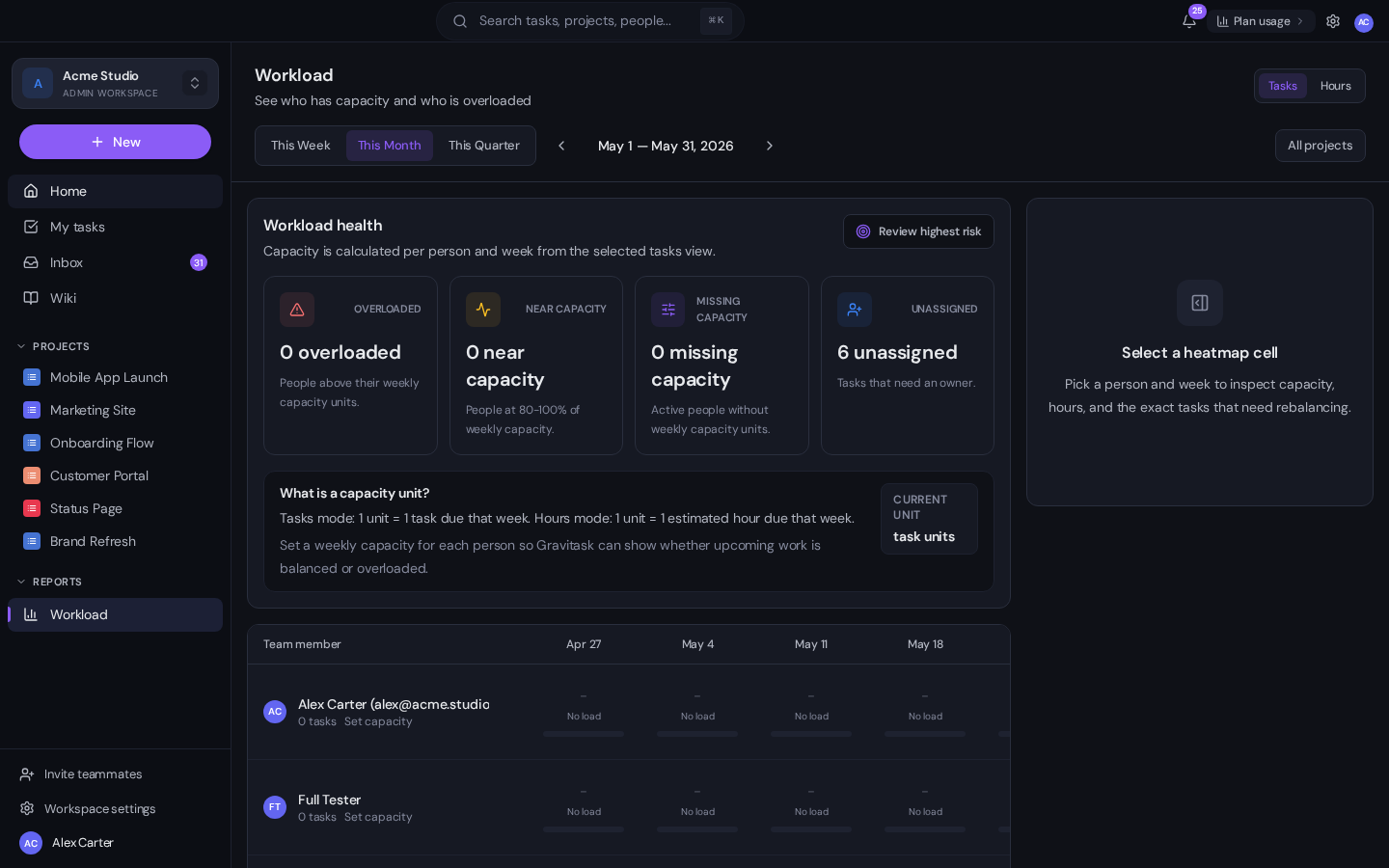
Most project tools either ignore capacity entirely or model it as a separate "resource management" tool you have to license. Gravitask treats capacity as a first-class field on every workspace member. Set a weekly capacity (in tasks or hours) and the Workload report shows you, at a glance, who has room and who is heading into a difficult week.
The same data feeds the auto-assign suggestion the AI triage workflow uses (covered in AI task automation): a new task lands, the AI checks who has spare capacity that week, and proposes the assignee accordingly.
5. Automation and AI in one place
Modern teams need both deterministic automation and AI-driven assistance. Gravitask gives you both:
- Native automations: trigger-action rules built in the UI, with conditions, dry-run mode, and a natural-language drafter that turns plain English into a working rule.
- MCP server: every Gravitask workspace exposes an MCP endpoint so Claude Code, Claude Desktop, Cursor, Windsurf and any other MCP-compatible client can read and write tasks directly. See How to connect Claude Code to Gravitask.
- Per-tool disable: workspace admins can disable any individual MCP tool, so a "read-only for AI" policy is enforceable from the server side.
- Audit trail on everything: every automation run and every MCP tool call is logged with who, what and when.
A real differentiator
Most project tools added an AI feature in 2024. Most of them mean "summarise this task" and stop there. Gravitask's MCP server lets the AI do work, not just describe it: triage a backlog, draft a status digest, rewrite the critical path after a slip, log time from a PR. The full playbook is in AI task automation: a practical playbook.
6. Built-in knowledge base and wiki
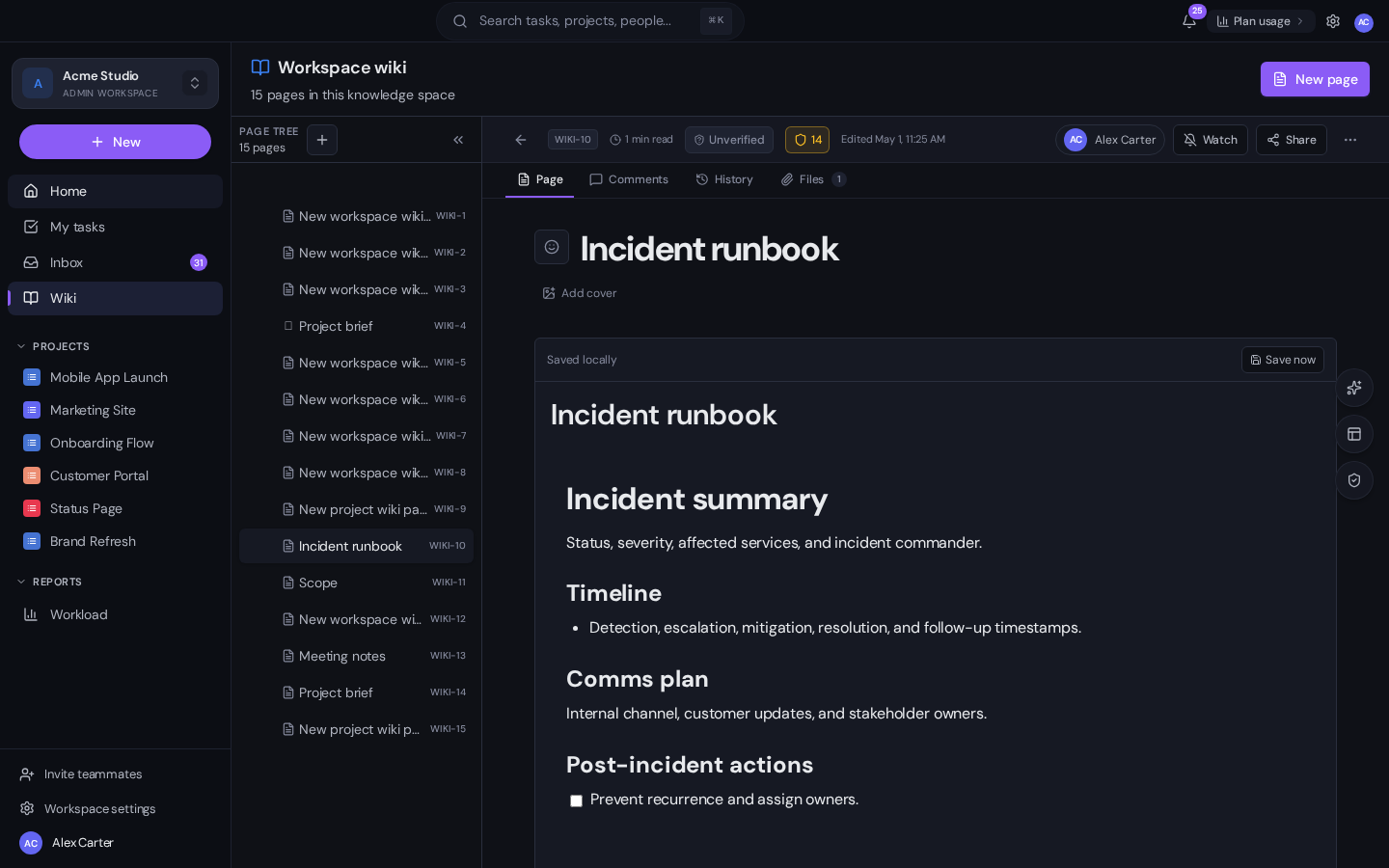
The pattern of "tasks live here, docs live somewhere else" creates a permanent integration tax: links rot, search misses the document you meant, and onboarding becomes a tour of seven URLs. Gravitask's wiki sits inside the same workspace as your tasks, with the same permissions, the same search and the same MCP access.
Wiki pages support rich text, embedded task lists, AI-assisted writing, page templates (project brief, retrospective, incident runbook, RFC, meeting notes), version history, and per-page verification ("this page was reviewed and is current as of last week").
7. Inbox-style notifications and home dashboard
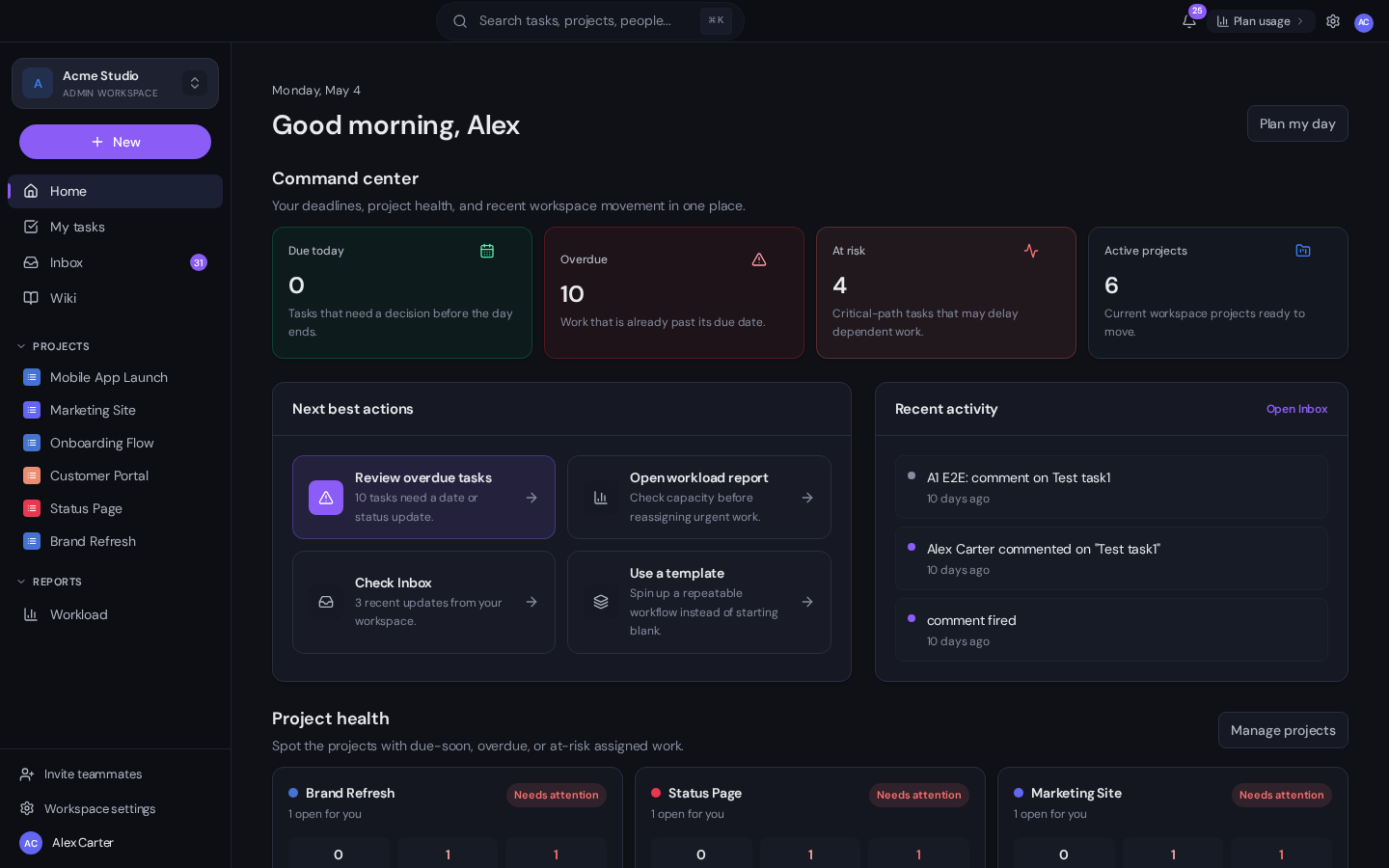
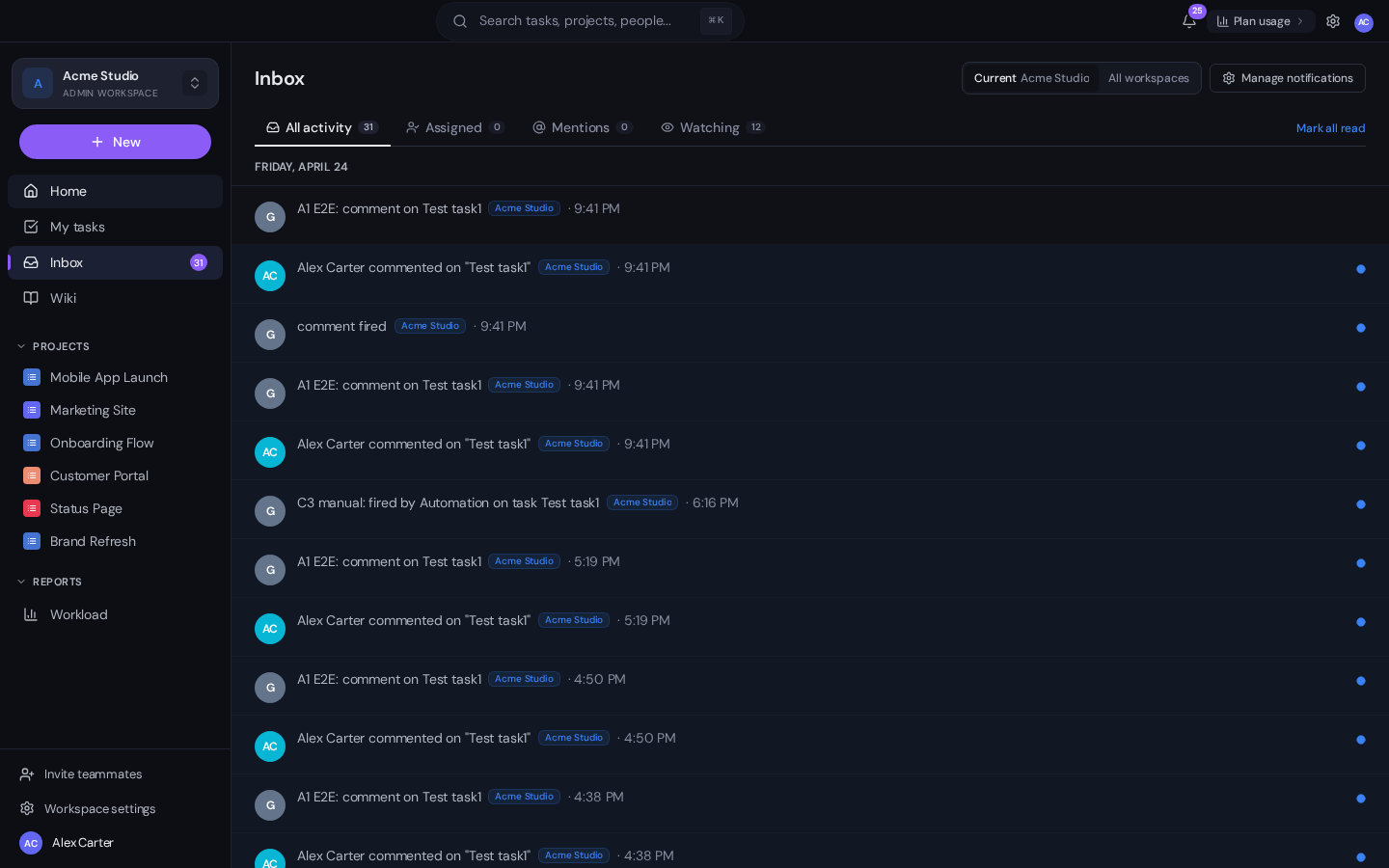
The home dashboard answers "what should I look at first?" without requiring you to remember which projects you are on. The Inbox view sits next to it for asynchronous notifications: @mentions, assignments, comments on tasks you follow, automation outcomes. Both are real-time across the desktop and mobile apps.
8. Audit trail, SSO and governance
For any team beyond a handful of people, governance moves from a "nice to have" to a procurement requirement. Gravitask is built with the audit trail as a first-class concept, not an enterprise add-on:
- Workspace-scoped audit log of every state change, including who, what, when, source (UI, API, MCP, automation rule), and the diff.
- SSO via Google, Microsoft and SAML on the Business plan; provisioning via SCIM on Enterprise.
- Workspace-level role permissions (Admin, Manager, Member, Guest) with per-project overrides.
- Per-tool disable for MCP, so your AI-access policy is enforceable from the server.
- GDPR-friendly data residency: workspaces can be pinned to UK or EU regions on the Business plan.
- Granular API key scopes: Read, Read & Write, or Full access; revocable individually; named per integration.
Compliance roadmap
Gravitask is in the SOC 2 Type II audit window for 2026 and supports HIPAA-aligned configurations on Enterprise. We publish a public security page covering encryption, access control and incident response policies.
9. Deep integrations with the rest of your stack
A project tool that does not integrate with the apps your team already uses creates a context-switching tax that nobody wants to pay. Gravitask integrates natively (no Zapier required) with:
- Slack & Microsoft Teams: notifications, slash commands, and inline previews of any task you paste a link to.
- Gmail & Outlook: convert any email into a Gravitask task with one click; reply on tasks straight from the inbox.
- Google Calendar & Outlook Calendar: two-way sync of scheduled tasks and milestones.
- GitHub & Azure DevOps: link a PR to a task with the short ID; auto-move the task to In Review when the PR opens, and to Done when it merges.
- Figma, Linear, Notion, Confluence: rich previews when you paste a link; inbound webhooks for the rest.
- Webhooks and a documented REST API for anything else; the API docs cover every endpoint.
- MCP server for AI clients (covered in MCP for project management).
10. Pricing that does not punish small teams
A category-leader in 2026 should not require you to talk to sales for the basics. Gravitask's pricing is transparent, per-user, monthly or annual, with the same plan structure across small teams and enterprises:
- Free: unlimited tasks, up to 3 users and 5 projects. Includes List, Board and Calendar views, comments, file attachments, time tracking, email notifications and 50 workspace wiki pages. The right starting point for small teams and pilots.
- Pro: £5/user/month. Adds unlimited users and projects, custom fields, integrations, recurring tasks, templates, automations, unlimited project wiki pages, wiki public links, analytics and AI, REST API, read-only MCP, webhooks, guest access, Gantt, Dashboard and Files views.
- Business: £14/user/month. Adds billable-hours reporting, workload and capacity reports, higher automation limits, public intake forms, unlimited wiki guests and verified pages, full read/write MCP and priority support.
- Enterprise: SAML SSO, SCIM provisioning, audit log export, region pinning, custom retention, dedicated support and a service-level agreement.
The plans are designed so that the free tier is genuinely useful for small teams and pilots, while paid plans unlock broader scale, automation, reporting and governance. We publish full pricing on the pricing page.
How Gravitask compares to other project management tools
Most teams considering Gravitask are migrating from one of: Asana (good views, weak automation, expensive at scale), ClickUp (everything bolted together, slow), Monday (nice UI, expensive automation tier), Notion (great docs, weak project management), Jira (right tool for engineering, wrong tool for the rest of the company), or Trello (great Kanban, no Gantt, no reporting). We have side-by-side comparison pages for the most common migrations:
- Gravitask vs Asana
- Gravitask vs ClickUp
- Gravitask vs Monday
- Gravitask vs Notion
- Gravitask vs Jira
- Gravitask vs Trello
- Gravitask vs Linear
- Gravitask vs Wrike
- Gravitask vs Basecamp
- Gravitask vs Microsoft Planner
Each comparison page includes a feature-by-feature table, a pricing comparison and a guided import path so the switch takes hours, not weeks.
How to migrate without breaking your team
- Run a parallel pilot for two weeks with one squad. Pick a real, time-bound project. Don't try to migrate everything at once.
- Import the structure first, not the history. Projects, sections and active tasks. Closed tasks rarely need to come along.
- Re-create the three rules you actually use. Most teams have dozens of automation rules, but only three of them fire often. Set those up first.
- Connect Slack, Gmail and Calendar in week one. The "where is the task?" question disappears once it can be reached from the channels people already live in.
- Wire MCP in week two. Read-only first; the morning brief and Friday digest pay for the rollout by themselves.
- Decommission the old tool only when the team has stopped opening it. That usually takes 4-6 weeks.
FAQ
Is Gravitask free for small teams?+
Yes. The free plan supports unlimited tasks for up to 3 users and 5 projects. It includes List, Board and Calendar views, comments, file attachments, time tracking, email notifications and 50 workspace wiki pages. There is no trial timer.
How does Gravitask compare on price to Asana, ClickUp and Monday?+
Gravitask's Pro plan is £5/user/month and Business is £14/user/month. Pro covers core paid project management, while Business adds workload, billable hours, higher automation limits and full MCP write access. See the pricing comparison page for the side-by-side numbers.
Does Gravitask work for engineering teams?+
Yes. The combination of short task IDs (MAL-42), GitHub PR linking, dependency-aware Gantt, Claude Code via MCP, and a documented REST API covers the engineering workflows that traditionally needed Jira or Linear. Many engineering-led companies use Gravitask as their company-wide tool while keeping the engineering team's issue tracker as a sub-view of the Gravitask project.
Does Gravitask have a Gantt chart?+
Yes. Every project has a Timeline view with dependencies, critical-path highlighting, milestones, density toggles and stakeholder export. Full walkthrough in How to use a Gantt chart in Gravitask.
Can AI assistants like Claude actually use Gravitask?+
Yes. Gravitask exposes a Model Context Protocol (MCP) server that lets Claude Code, Claude Desktop, Cursor, Windsurf and other MCP-compatible clients read and write tasks directly. See MCP for project management for the conceptual overview and How to connect Claude Code to Gravitask for the setup walkthrough.
Where is the data hosted?+
Gravitask runs on Microsoft Azure. Free workspaces are hosted in the EU. Business workspaces can pin to UK or EU regions. Enterprise customers can request additional regions including US East and Australia.
Is there a mobile app?+
Yes. Native iOS and Android apps with offline-friendly task editing, time tracking and notifications. The mobile apps are included on every plan; there is no separate mobile licence.
How long does a migration take?+
Most teams pilot in week one, fully cut over by the end of week four. The migration tools handle Asana, ClickUp, Monday, Notion, Jira, Trello and Microsoft Planner directly; CSV import covers the rest. Enterprise customers can request a guided migration with a Gravitask success engineer.
Where to next
If you want to dig into specific capabilities: How to use a Gantt chart in Gravitask covers planning, dependencies and critical path; MCP for project management explains the AI integration story; AI task automation: a practical playbook is the framework for what to delegate; and How to connect Claude Code to Gravitask is the developer-facing setup walkthrough. If you would rather just try it, start a free workspace and follow this article along.
Project management guide next steps
Turn this guide into a live workspace.
Use the checklist from this article to test Gravitask with real tasks, three free users, and the core views ready from day one.